Learn to Publish on Joomla!
It only takes a few minutes to develop skill on Joomla. This article will help.
Disciples Today
Editors Guide and Training
“Oh, that my words were recorded, that they were written on a scroll, that they were inscribed with an iron tool on lead, or engraved in rock forever!”
Training Topic Outline
- Overview of Joomla Content Management
- Section / Category Selection
- “Intro Text” Header Feature / Thumbnail Images
- Publishing Options
- Opening & Logging-Into Joomla Content Website
- Logging In
- Changing Your Password
- Inputting Your Article
- Getting Starte
- Choose Proper Folder(s)
- Creating Intro Text Header
1) Creating thumbnail photo
- Inputting Main Text Body
- Creating and Adding Pictures
- Publishing Options – Subscription-Only / Public
- Proof Read and Check Live Site
- Adding Hyperlinks
Thanks for all you do!
- Overview of Joomla Content Management
- Section / Category Selection
- Header Feature / Thumbnail Images
- Publishing Options
Joomla’s platform for web-site creation is an “open-source-code” tool that offers simple and powerful editing capabilities. (See http://en.wikipedia.org/wiki/Open_source ) Unlike Exigo, we have more freedom to develop our site. Disciples Today Subscribers will notice a difference right away! They will appreciate having working functionality, a professional appearance and the ability to search for material of interest to meet their needs. It even includes a translation tool into 9 languages!
You, as an editor, will see that, all material can be accessed and viewed easily through simple folder infrastructure, instead of navigating and choosing from a few dozen page links and then coding a tag so it hopefully appears properly on the DT pages.
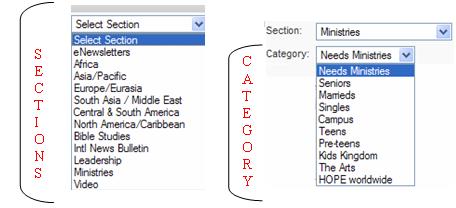
Your material will be placed in one or more of the category folders below called “SECTIONS”. Think of the “SECTIONS” of a newspaper that will have certain material in them. Each Section can be divided into categories as needed. (Ministries Section shown w/ Categories )
Section / Category Selection
As noted, editors’ material can be placed in more than one folder so people can find material easily. For example, an article about a campus student choir in Canada that did a fundraiser coffee house for Hope worldwide could logically be placed in the following categories…
· Ministries / The Arts
· Ministries / Campus
· Ministries / Hope Worldwide
· North America / Caribbean / Canada
Note: Although an article would be posted in multiple Sections and Categories, only one category article would be chosen (selected a ) to be “shown on front page”. ( See Publishing Options section )
In the Sections, there are relevant categories per sample table below….
|
Section
|
Category
|
|
ENewsletters
|
(none)
|
|
Africa
|
French-speaking Africa
|
|
West Africa
|
|
|
East Africa
|
|
|
Asia / Pacific
|
Southeast Asia
|
|
Philippines
|
|
|
Oceana
|
|
|
Japan
|
|
|
China / Taiwan
|
|
|
Australia
|
|
|
Europe / Eurasia
|
Mediterranean
|
|
Western Europe
|
|
|
Eurasia
|
|
|
Eastern Europe
|
|
|
South Asia / Middle East
|
Middle East
|
|
India, Pakistan & Sri Lanka
|
|
|
Central & South America
|
South America
|
|
Central America & Mexico
|
|
|
North America / Caribbean
|
Caribbean
|
|
Canada
|
|
|
United States
|
|
Subscribers can search within selected categories or the whole Disciples Today site. Choosing multiple category folders will help people find your material and minister to their needs.
“Intro Text” Header Feature / Thumbnail Images
When you post a DT article, there are two main sections of material… “Intro text” and “Main Text”. The Intro Text replaces two Exigo items. It is the counterpart to Exigo’s Description Tags and the Heading to the main article. In other words, it is the “tickler” description giving readers a taste of what the article is about before they open the whole article AND it becomes the header of the article when it is opened. It should include a small jpeg image,leading people’s eyes to the content. The image should be smaller than 200 by 200 pixels. The text and image will appear on the home page when an article is new. Additionally, the image will also appear at random as Joomla scrolls through DT content for subscribers.
Below is how the Intro text section looks when you begin to add new material…
What you see in the intro text, will appear at the top of the article above the “Main text” that you edit in. More on all that later!
Publishing Options
As you complete an article, you will have publishing options to choose from that will determine how and where the article is viewed, and by whom. Look at the image below…
Your articles should always appear on the Home Page one time. (“SHOW ON FRONTPAGE”)
If you want the article to appear in other Sections and Categories, besides the one you initially choose, copies of it should NOT have a “a” in “SHOW ON FRONTPAGE”.
Additionally, most articles will require a subscription to view, so be sure to select “REGISTERED” as the access level. Otherwise, the content will be open for all the world to see without any subscription needed. If you are doing an article that is an event announcement or ministry opening or other “HEADLINE” type of material, then it is OK to select “PUBLIC” as the access level.
Note: If you do not click “PUBLISHED” you can save an article for future updates and publish it when it is completed. I like this because I can work on an article from any computer once it is saved in the content management engine.
- Opening & Logging-Into Joomla Content Website
- Logging In
- Changing Your Password
The log in fields look like this…
Type in your user name and password and hit “Enter” or click on the button.
Note: If you need your log-in name and password, let me or Roger know!
When you log in, your screen will appear as below, showing all others who are also logged in and working the content…
Changing your password
Again, if you need your log-in name and password, let me or Roger know! There is a simple way to change your password, yet we ask that you do not. Only managing editors will have a record of each editor’s password. If you would like to change your password, contact Roger Lamb or myself so we can assist you. Chris Walquist, Roger and myself can attest that password security issues have been virtually non-existent.
3. Inputting Your Article
a. Getting Started
b. Choose Proper Folder(s)
c. Creating Intro Text Header
a0 Creating thumbnail photo
d. Inputting Main Text Body
e. Creating and Adding Pictures
f. Publishing Options – Subscription-Only / Public
Getting Started
Now that, prayerfully, you have a better sense of how Joomla works, you can dive in and get some good stuff published! Once logged in, you will see the CONTROL PANEL per the image above.
Click on the “ADD NEW CONTENT” button.
Your new article’s content editing page will appear, per below, where you can immediately create a title and subtitle (title alias) for it…
Choose Proper Folder(s)
At this point, you can choose the section and category you will have your article posted. These are the folders we discussed earlier. Later, after the main article is posted, you can copy and paste the info into other sections and publish the page there as well – BUT NOT “SHOW ON FRONTPAGE.” The original posting will take care of that!
Creating Intro Text Header
Creating thumbnail photo
The first part of your article will be the Intro Text Header. This will become the start of the main article, and should include a small jpeg image no larger than 80×80 pixels.
EDITOR RULES OF THUMB
FONT SHOULD ALWAYS BE ARIAL “2” (size 10 pitch)
Header line can be Bold “3” (size 12 pitch)
Type your header info using Arial Font just as you would do in Exigo…
In Joomla, for the Intro text section, all you need is the title (Arial BOLD “3”) and Underlined and a few opening lines from the article. (Arial “2”)
The Intro text will merge with the body text into one seamless article .
Next to the title, insert an image through the following process…
Creating thumbnail photo
1. In the Intro text area, place your cursor to the left of your Headline text by one click there
2. Click on the lower Image Icon per image below
3. The following pop-up will appear for you to click on “Upload” tab…
4. Click on “Browse”
5. Select Desired folder and Image and click “OPEN” Note: JPEGS ONLY
6. Then Click “Send it to the Server”
7. Click “OK” when file is successfully uploaded.
8. Adjust the size down to 100 pixels as the largest dimension per below
9. Set Hspace / Vspace to 5 (Horizontal and Vertical) per below
10. Align Left for Intro text Area and Click “OK” per below
The process above is the same for all photos and images. Only the intro header text Images need to be thumbnails no larger than 80 pixels at the largest area.
Inputting Main Text Body
The process for your main text body is simple. You can paste the material in from another document or simply type it in from scratch. I like to actually work on may article in the Joomla site and save it (without clicking “PUBLISH”) for later, when I have time – then publish it when completed.
Remember – Arial Size 10 (“2”) is the standard size.
Creating and Adding Pictures
Use the same process as above to add pictures – I will add some tips later!
Publishing Options – Subscription-Only / Public
Once your article is complete and ready to publish, you can then set it up to be seen around God’s family by choosing the following options on the “PUBLISHING TAB” to the right of your content…
Let me briefly explain the arrows on the right of the image…
“SHOW ON FRONTPAGE” – Click this option to have the published article appear on the front page of DISCIPLES TODAY. If you are placing an article in more than one folder or category, the duplicate articles should not be shown on the front page!!! However, they can be searched for in the other categories and read there in our site’s archives. The “COPY” icon will allow you to easily do this from the “Content Items Management” page.
“PUBLISHED” – Click this option when the article is complete and you want it to be shared. Otherwise, if you are still waiting for pictures or more information, you can save the article on Joomla for future editing until it is complete! This is nice if you have a few different computers you are always working from and want to whittle away at your material. My company allows me to use my lunch breaks to do this volunteer work. Be wise and righteous!!
“ACCESS LEVEL” – This optionsets up the material to be part of the subscription to Disciples Today. Most articles should be “REGISTERED” Headlines Channel articles should be “Public”. Click the option that suits the article. Do not use “Special” at this time at all.
“AUTHOR ALIAS” – This is what you use when you post an article written by someone else. You, as an editor, will be the creator of the material, but here you type in the real author or source of the material – per the example above. That author alias name will appear on the article tag.
4. Inserting Hyperlinks
There are 2 main ways to add a link
A. Direct Hyperlinks or URL (Uniform Resource Locator) links
B. Link text URL or Hyper-Link
Adding URL Links:
- When linking to a website in an article, click on the URL edit icon noted below…
- As you scroll over it, you will notice that it says: Insert/Edit Link
- Insert the URL into the proper box. Be sure the “http:// “ is NOT in the box twice as it is already provided for you in the Protocol box.
- In the dropdown menu of the Target tab, click on New Window (blank)
Write the name of the link in the blank box.
- Click OK
- Change the font TO BLUE
- When proofing your article, be sure to see if the link is working properly
Linking Text to Hyper- Links:
When you want to create a link in an article using existing text, simply do this….
· Highlight the text you want to link. If it is a proper name or title, make the text italic.
· Click the Insert / Edit Link button
· Link Info: Insert the URL
· Target: New Window (_blank) This will bring up the linked site in a new window instead of closing DToday.org in the current window.
· Click “OK “
· Save
· Preview and check the links to see if the proper linked site appears.
5. Eliminating Extra Paragraph Spacing
Extra spacing — I don’t know why it happens, but sometimes when we publish something inserts extra spaces in the intro and the article. Here is what I have learned to do:
- After you publish, always check to see what it looks like on the homepage and the article page.
- If there are extra spaces, go to the Source Code (image below) of the article and delete the extra space indicators.
For example:
- Apply, then check the Preview or the actual publishing on another browser. Be sure the spacing is correct.
- Save
6. Using Additional Editor Tabs:
These are the same tabs used when choosing Publishing Options.
We will discuss Meta Info and Parameters
Meta Info Tab: This is to help people find us and the article on search engines. See how I have filled in the Meta Tags for a Holiday Teen Article.
- Always add the ICOC and International Church of Christ because there are too many negative sites about the ICOC that are old news and we need to help get the new good news to appear first.
- Copy the title and author into the description and click the Add Sect/Cat/Title button
- Add ICOC and International Church of Christ to the Keywords section
|
|
Meta Data
|
|
Description:
Seven Things To Do Christmas Break by Michael Lamb
|
|
|
Keywords:
Ministries, Teens, Seven Things To Do Christmas Break by Michael Lamb, ICOC, International Church of Christ
|
|
|
|
|
|
Parameters Tab: Parameters: The settings on this tab are crucial. All you have to worry about are the Section and Category settings. This is how they should look when you have set them:
Concluding thought and future updates to the training material …
To close, let me say THANKS to everyone who has the heart to serve in this way. There is much more we could write about the bells and whistles of JOOMLA. My prayer is that this is enough for all of us to get started! I will update the and publish revisions to this material as questions arise and the site evolves and improves again and again. I hope to have relevant updates as needed or at least once a month.
Please feel free to e-mail me or Roger with any questions, ideas, and constructive criticism!
Jerrymaday@aol.com Roger_Lamb@icoc.org
Tel 508 753-0788
THANKS! Jerry
Concluding thought and future updates to the training material …
To close, let me say THANKS to everyone who has the heart to serve in this way. There is much more we could write about the bells and whistles of JOOMLA. My prayer is that this is enough for all of us to get started! I will update the and publish revisions to this material as questions arise and the site evolves and improves again and again.
Please feel free to e-mail me or Roger with any questions, ideas, and constructive criticism!